Your gear designs, live on your own website: sharp at any size, in 2D or 3D, turning or still.
What a web view is
A web view is a view of one of your designs, framed in Gear Generator Pro and shown on a web page. It is not a picture or a video of the gears: your visitor's browser draws the gears themselves, from the design, so they are sharp at any size and on any screen, and they turn as they turn in the app. The banner above is a web view.
Each web view is a single line of HTML, with the design, its framing and its motion packed into it. The website loads one small script, ggview.js, which draws every web view on the page. There are no image or video files to make, upload and keep up to date: change the design, copy its web view again, and the page shows the new one.
In 3D
This is a worm gear pair in a 3D web view: a three-start worm and its throated wheel. It is seen from where you left the camera in the app, in perspective or not, and the worm turns the wheel back and forth, three teeth for every turn.
A 3D web view shows the teeth, the faces and the bores as the app's 3D view does: helical and herringbone gears, chain and belt wheels, and the 3D gear pairs, worm, bevel and screw gears.
Like every web view, it turns only while you can see it.
Why web views
- Sharp at any size. Lines, not pixels: crisp on a phone, on a large screen and at any zoom, and scaled down to fit the column they are in.
- Light. One script of about 70 kB (compressed) draws any number of web views, and each one is a few kilobytes of text in the page. A video of the same gears would take megabytes.
- Moving only when seen. Only the web views on screen turn; the page stops drawing altogether when none is in view. Visitors who ask their system for less motion see still pictures.
- Always your current design. The web views are kept in the design's
.ggfile with their framing. Change the gears, copy the web view again, and the page is up to date. - Yours, and private. The script is a file on your own server. It sets no cookies, tracks nothing and connects nowhere: nothing about your visitors goes to us or anyone else.
- In your colours. Four themes, a transparent background, and CSS for the rest.
- Out of the way. The mouse wheel and touch stay with the page: scrolling over a web view scrolls the page.
What you can choose
Size
Width and height in pixels, from 64 to 2560 each. That is the web view's largest size: in a narrower column it scales down and keeps its shape, as an image does. The size presets cover the usual shapes:
- 640 × 360 16:9
- 960 × 540 16:9
- 1280 × 720 16:9
- 640 × 200 banner
- 960 × 300 banner
- 1200 × 630 link preview
- 480 × 480 square
- 800 × 600 4:3
What it shows
- 2D: the design as the stage draws it, every gear type with its holes and screws, and the display settings you chose: grid, guides, labels, centre marks, the line of action. A selected gear shows its centre distances, and the Visibility filter can show only its layer, or only the gear.
- 3D: the 3D view from the angle you turned it to, in perspective or axonometric, or a 3D gear pair.
Turning or still
- Animated: the design turns as its drives turn it in the app, at the speed you set for that web view, and back and forth if a drive swings. Each web view keeps its own speeds, so one design can have a slow web view and a fast one.
- Still: a drawing of the design in the pose it has when you copy the web view, drawn once.
Colours
One theme for all the web views of a website: Auto (light, or dark when the visitor's system is), Light, Blueprint or Dark, on its own background or a transparent one. Your site's CSS can fine-tune the colours (below).
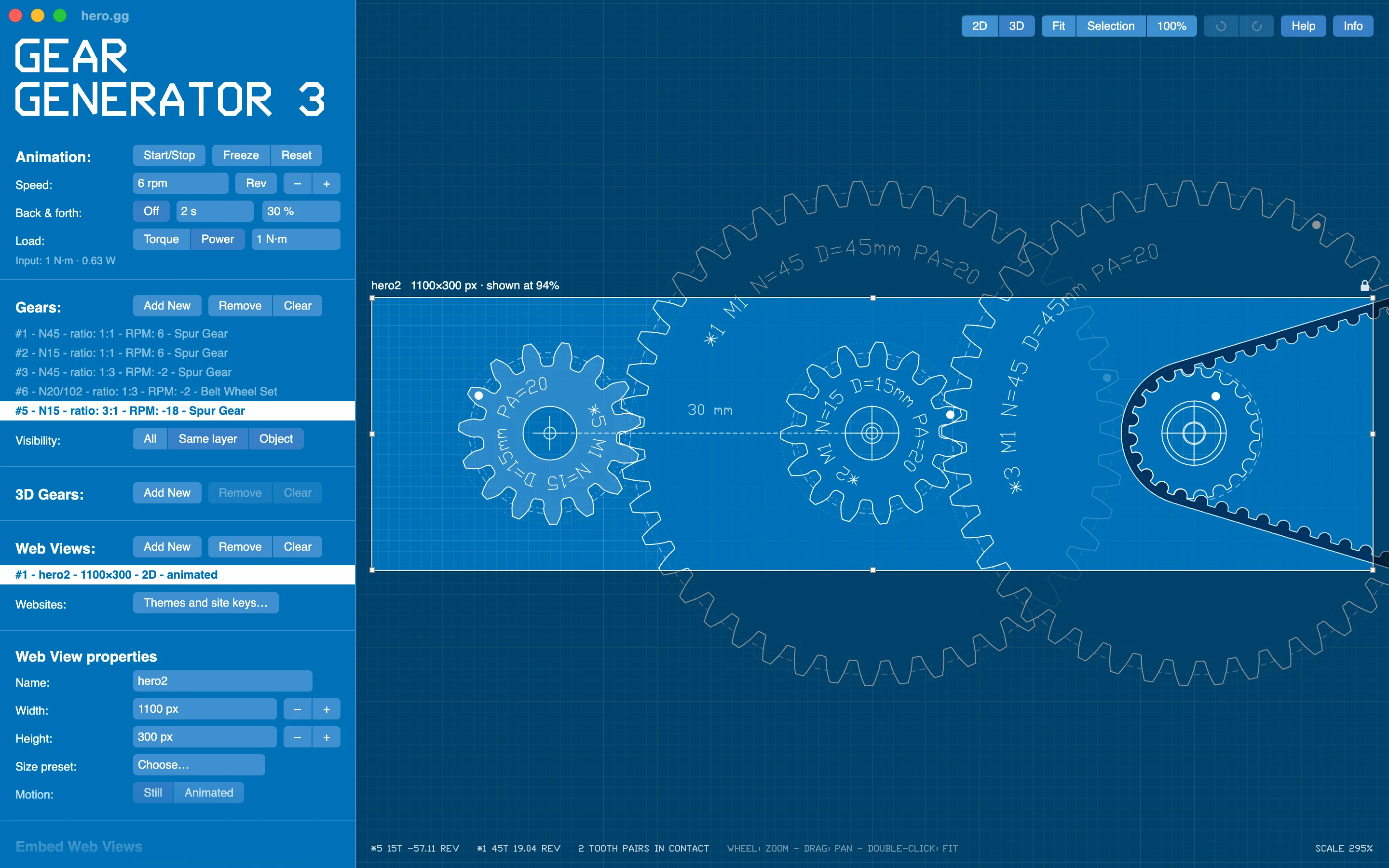
Making a web view
Web views are made in Gear Generator Pro, in the design they show, and saved with it in its .gg file. A design can have as many as you like.
1Add one
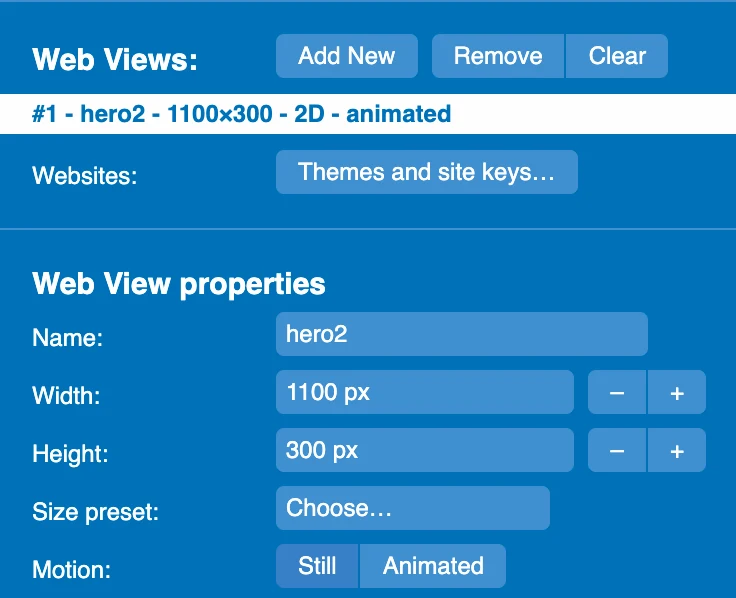
Design the gears as usual. Then click Add New in the Web Views section of the panel: the new web view shows what the stage shows now. To show a 3D gear pair, select the pair first.
While a web view is selected, its properties take the place of the gear's: its Name, its Width and Height (or a Size preset), and its Motion, Still or Animated. An animated web view turns at the drives' speeds as you set them while it is selected.
2Frame it
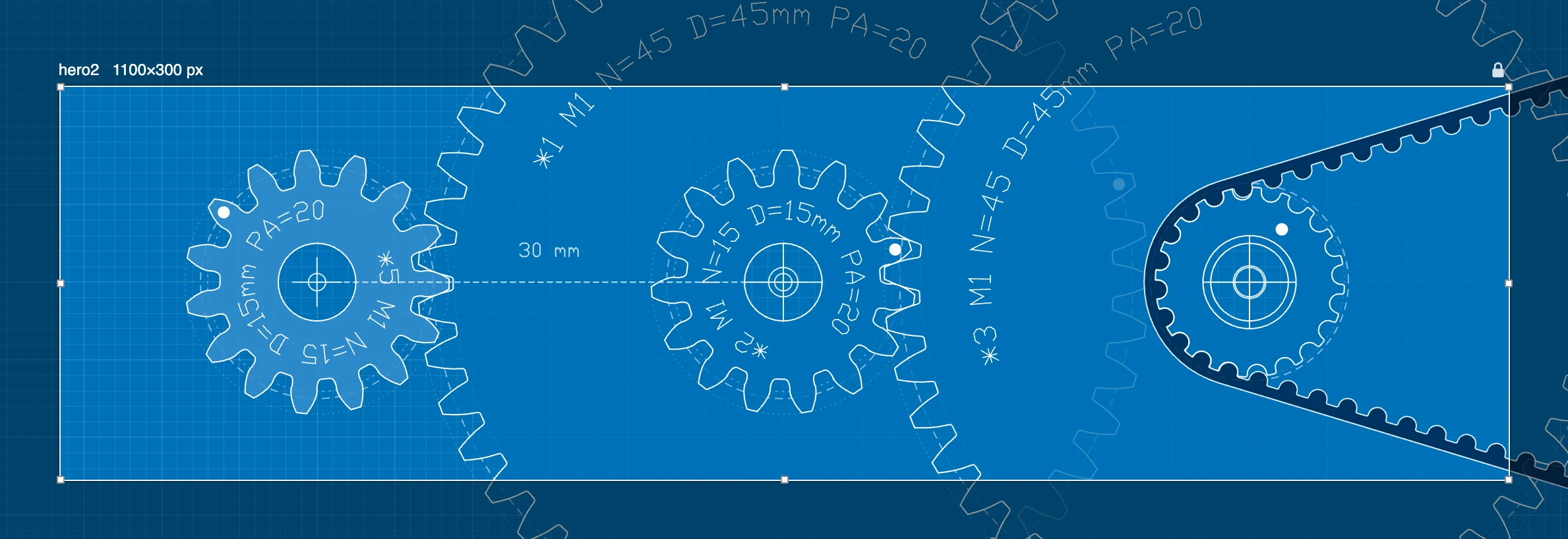
The stage shows the web view's crop box: a box of its size in the middle, dimmed around it, with its name and size over it. What is in the box is what the website shows.
- Pan and zoom under the box as always, or orbit in 3D.
For a double-click fits the design into the box. - Drag a handle to resize the box. It stays centred;
Shiftat a corner keeps its shape. - The lock at its right fixes the framing, so nothing moves it by accident.
- The web view keeps the look of the stage too: the display settings, the selected gear, the Visibility filter.
A box larger than the stage is shown smaller, and says by how much; the web view is still made at its own size.
3Add your website
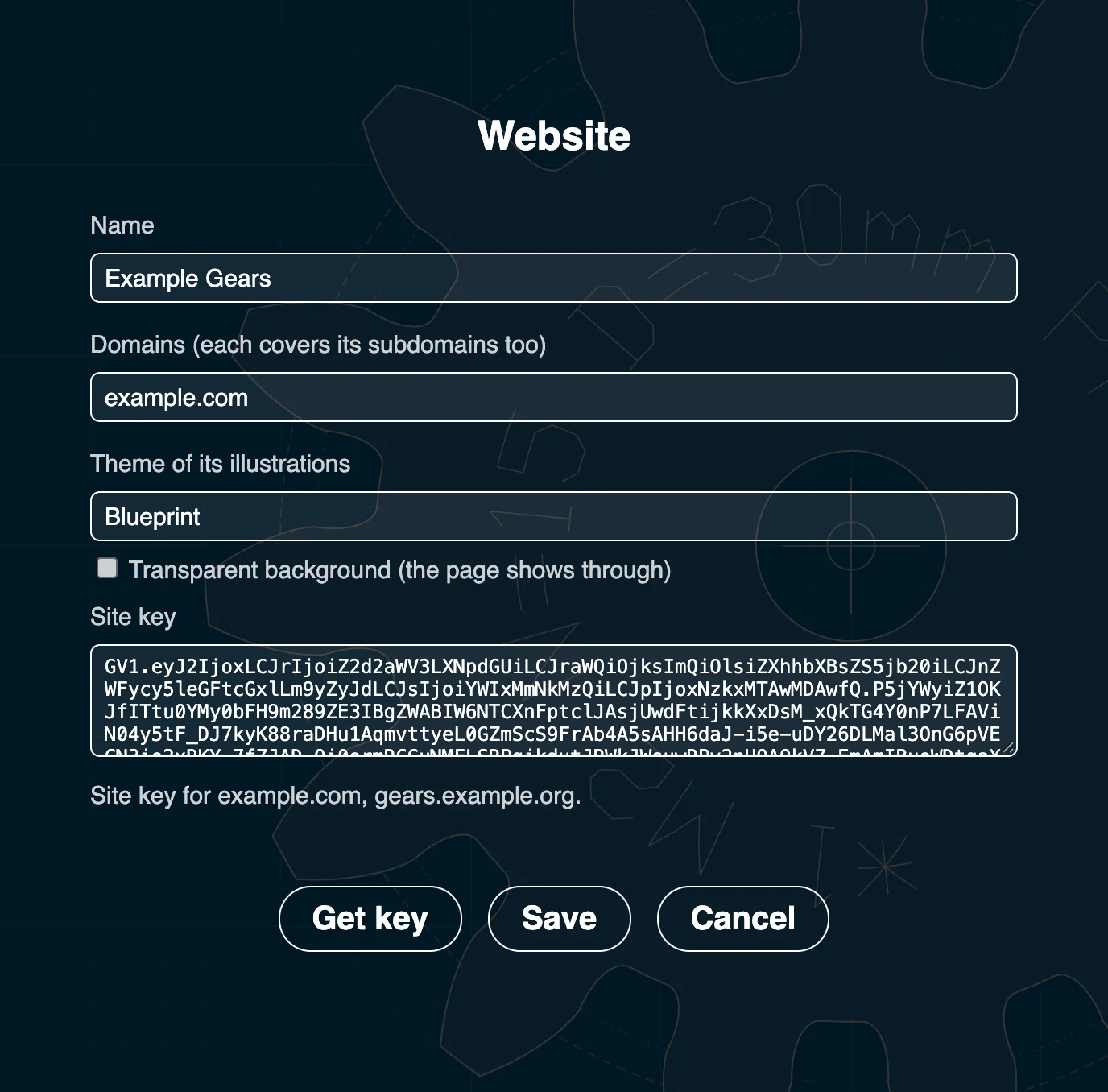
Click Themes and site keys… beside Websites (or Web Views › Websites… in the menu), and add your website: a name, its domains, and the theme of its web views.
Get key asks geargenerator.com for the website's site key, signed for those domains. It needs your registered Pro license and the internet, once. Each domain covers its subdomains, so example.com covers www.example.com too. A Pro license has keys for 3 domains, and domain packs add more.
4Take it to the website
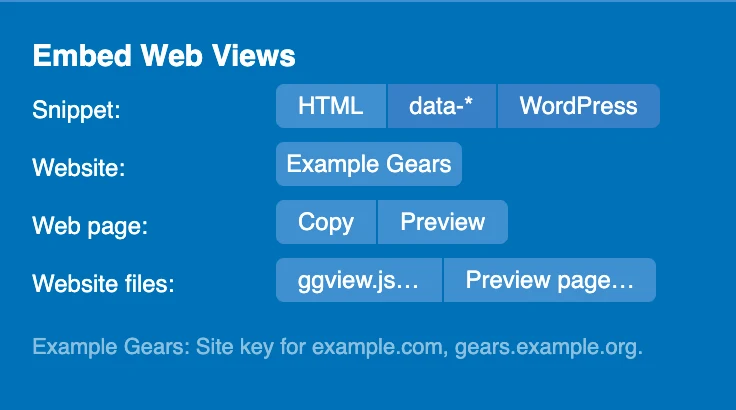
Embed Web Views, under the properties, gives the website what it needs:
- ggview.js… saves the website's script, with its theme and site key inside: one file for all its web views.
- Copy puts the web view on the clipboard, as HTML, as
data-*HTML for site builders, or as a WordPress shortcode. - Preview shows it as the website will, and Preview page… saves every web view of the design on one page, to open from your disk.
Still
A still web view is a drawing. This one is a 40-tooth gear with its bore and six screw holes on a bolt circle, and the pinion it drives, with the labels, guides and centre marks of the app; the gear is selected, so its centre distance shows.
It is drawn once, as lines, so it stays sharp however far the page is zoomed: a part documented exactly as it was designed, with no image to export and nothing to redraw when the design changes.
On your website, step by step
1Upload the script
Put the ggview.js the app saved on your website, for example at its top level. Then load it once on every page that has web views, in the <head> or at the end of the <body>:
<script src="/ggview.js" defer></script>Save it again when you change the website's theme or domains, and when an update of Gear Generator Pro says its web views need a new one.
2Paste the web views
Paste each web view where it goes on the page:
<div class="ggview" width="1100" height="300" content="1.bY9BDoIwFETvMutK…"></div>width and height are its largest size. content is the design with its framing and motion: a few kilobytes, best left as it is. Add a title that says what it shows, for screen readers:
<div class="ggview" width="600" height="400" content="1.bY9BDoIwFETvMutK…"
title="A worm turning its wheel"></div>3Lay them out
A web view behaves like an image: as wide as its column, up to its own width, and as tall as its shape needs. Put it wherever an image could go: in a figure, a grid cell, a card. The two-column blocks on this page are a grid:
<div class="duo">
  <div class="ggview" width="600" height="400" content="1.bY9BDoIwFETvMutK…"></div>
  <div class="aside">
    <h3>In 3D</h3>
    <p>This is a worm gear pair in a 3D web view…</p>
  </div>
</div>
.duo {
display: grid;
grid-template-columns: minmax(0, 600px) minmax(0, 1fr);
gap: 44px;
align-items: center;
}
.duo .aside { font-size: 15px; opacity: 0.8; }
@media (max-width: 760px) {
.duo { grid-template-columns: 1fr; } /* one under the other on a phone */
}4Fine-tune the colours
The website's theme colours all its web views. CSS can change them, on every web view or on one, with the custom properties the themes are made of. The web views on this page do: their website's theme is Blueprint, and the page's CSS gives them this:
.ggview {
  --screen: #f0b010;                     /* the background */
  --stroke: #000;                        /* the lines and the lettering */
  --gear-fill: rgba(180, 132, 12, 0.8);  /* the gears */
  --gear-sel: rgba(132, 97, 9, 0.85);    /* the selected part */
  --belt: #604606;                       /* the belts */
  --dim: #000;                           /* the centre distance */
  --grid: #000;                          /* the grid */
}
--accent (the line of action) changes the same way, and --screen: transparent lets the page show through.
5Try it
On your own computer, any valid key works: localhost, *.test, or a page opened from your disk. So you can build and check the whole site before it goes up.
On a domain its key doesn't cover, a web view still shows, with a small Made with Gear Generator badge in its corner, and the browser's console says why. GGView.status() in the console lists every web view on the page and what it is doing.
A whole page
Everything together: the script, a banner, and two web views side by side.
<!doctype html>
<html lang="en">
<head>
  <meta charset="utf-8">
  <meta name="viewport" content="width=device-width, initial-scale=1">
  <title>Our gearbox</title>
  <script src="/ggview.js" defer></script>
  <style>
    .two { display: grid; grid-template-columns: 1fr 1fr; gap: 24px; }
    @media (max-width: 700px) { .two { grid-template-columns: 1fr; } }
  </style>
</head>
<body>
  <div class="ggview" width="1100" height="300" content="1.bY9BDoIwFETvMutK…"
       title="A gear train with a timing belt, turning"></div>

  <h1>Our gearbox</h1>
  <p>…</p>

  <div class="two">
    <div class="ggview" width="600" height="400" content="1.bY9BDoIwFETvMutK…"></div>
    <div class="ggview" width="600" height="400" content="1.bY9BDoIwFETvMutK…"></div>
  </div>
</body>
</html>
Site builders
Paste the script and the web views into the builder's HTML or embed blocks; the script can also go once into the site's header code, where the builder has a place for it. Some builders drop attributes they don't know: for those, copy the data-* form, which is valid HTML and works the same.
<div class="ggview" data-width="600" data-height="400" data-content="1.bY9BDoIwFETvMutK…"></div>WordPress
- Install the Gear Generator Pro Web Views plugin: Plugins › Add New › Upload Plugin, with its zip.
- In Settings › Gear Generator, paste the website's site key (from the app's Website sheet) and choose the theme.
- Copy the web view in its WordPress form and paste the shortcode into a post or a page.
[ggview width="600" height="400" content="1.bY9BDoIwFETvMutK…"]Static sites
Keep the .gg files in the site's repository and mark where each web view goes, by its file and its name. After the site is built (Hugo, Jekyll, Eleventy, Astro, a Next.js export…), inject fills them in, and does it again at the next build, so the site follows the designs:
<div class="ggview" data-src="gears/drive.gg#hero"></div>npm install @geargenerator/ggview
npx ggview init --key GV1.… --theme blueprint --out public/
npx ggview inject dist/Frameworks
The npm package is the script as a module too. Start it once in the browser; every web view the framework adds later is found and drawn.
import { init } from "@geargenerator/ggview";
init({ key: "GV1.…", theme: "blueprint" });

export const Gears = ({ content, width, height, title }) => (
  <div className="ggview" width={width} height={height} content={content} title={title} />
);
Good to know
- A domain counts for good from its first key, and new keys for it are free from then on. A key keeps working without asking geargenerator.com, so the web views on a site keep working too.
- What counts is the address bar. A web view in a site builder's HTML block counts as your site. Your page framed by another website counts as that website, and shows the badge there.
- Browsers: every current one, from Chrome and Edge 103, Firefox 113 and Safari 16.4 on. 3D needs WebGL 2; without it a 3D web view shows its 2D view.
- Everything about web views is in the user manual: in the panel, framing and on the website.
- Questions? Write to support@geargenerator.com.